Thunderbird: Default Email Sorting
Sort newest messages on top and enable thread view
Contents
Thunderbird: Default Email Sorting
This guide shows how to set Thunderbird to sort by date, show newest emails first, and enable threaded view.
In this article
- Default sorting by date
- Descending order for newest-first
- Threaded view configuration
Mozilla Thunderbird is a free, open-source email client with a configurable interface. Here we focus on changing the default sort order so the newest messages appear on top.
Procedure
- Open Thunderbird.
- Go to Tools → Settings (or Preferences on some builds).
- In General, scroll to Config Editor and open it.
- Accept the warning to continue.
- Search and edit the settings below.
Sort by date
Search for mailnews.default_sort_type and set it to 18.
Change order (newest first)
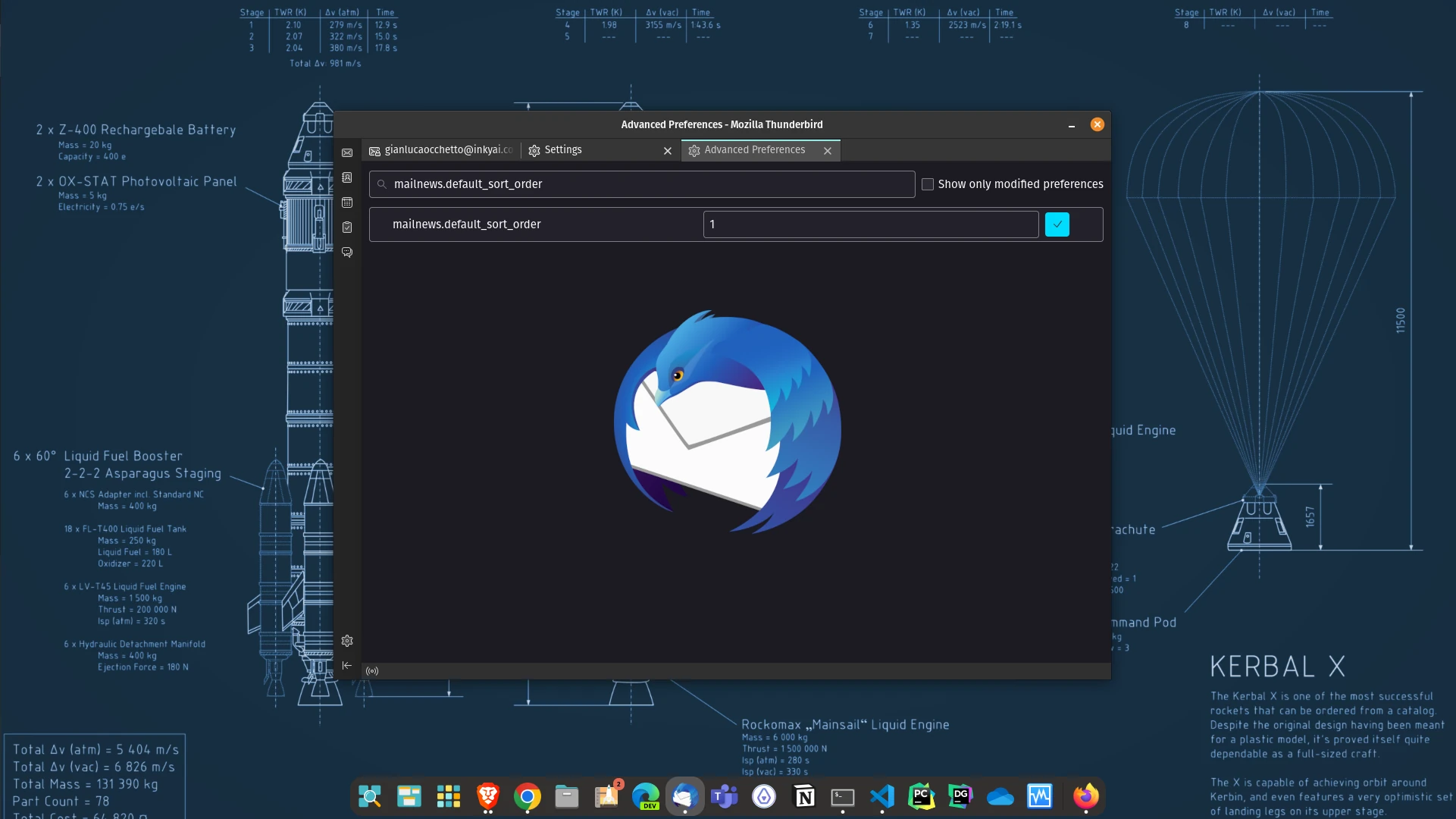
Search for mailnews.default_sort_order and set it to 2 (descending, newest first). Use 1 for ascending.
Enable thread view
Search for mailnews.default_view_flags and set it to 1 to enable conversation grouping.
Conclusion
Close the Config Editor when you’re done; changes apply immediately. Your inbox should now follow the new sorting and view settings.